Project 2 · CS180 · Fall 2026
Fun with Filters
and Frequencies
Convolution from scratch, finding edges, sharpening, hybrid images that change with distance, and blending two photos with no seam.
Part 1.1
Convolution from scratch
A convolution slides a small filter over the image. At every pixel it multiplies the filter by the patch of image under it and adds everything up, and that sum becomes the new pixel. Before sliding, the filter gets flipped upside down and left to right. That flip is the difference between convolution and correlation.
I wrote it twice with numpy only. The first version uses four loops: two to visit every output pixel and two more to walk over every filter entry. The second version keeps the two outer loops but replaces the inner two with one slice of the image, multiplied by the filter and summed.
def zero_pad(im, ph, pw):
    """Surround the image with ph rows of zeros on top and bottom, and pw columns on each side."""
    h, w = im.shape
    out = np.zeros((h + 2 * ph, w + 2 * pw))
    out[ph:ph + h, pw:pw + w] = im
    return out

def crop_same(full, im_shape, k_shape):
    """Cut the middle out of a "full" result so it is the same size as the input image.
    This matches the offset scipy uses, which also works for even sized kernels."""
    h, w = im_shape
    top = (k_shape[0] - 1) // 2
    left = (k_shape[1] - 1) // 2
    return full[top:top + h, left:left + w]

def conv_four_loops(im, k):
    """Convolution with four nested loops. Easy to read, very slow."""
    k = k[::-1, ::-1]                       # convolution flips the filter
    kh, kw = k.shape
    padded = zero_pad(im, kh - 1, kw - 1)   # "full" padding
    out_h = im.shape[0] + kh - 1
    out_w = im.shape[1] + kw - 1
    out = np.zeros((out_h, out_w))
    for i in range(out_h):
        for j in range(out_w):
            total = 0.0
            for a in range(kh):
                for b in range(kw):
                    total += padded[i + a, j + b] * k[a, b]
            out[i, j] = total
    return crop_same(out, im.shape, (kh, kw))

def conv_two_loops(im, k):
    """Same thing, but the two inner loops become one numpy multiply and sum."""
    k = k[::-1, ::-1]
    kh, kw = k.shape
    padded = zero_pad(im, kh - 1, kw - 1)
    out_h = im.shape[0] + kh - 1
    out_w = im.shape[1] + kw - 1
    out = np.zeros((out_h, out_w))
    for i in range(out_h):
        for j in range(out_w):
            window = padded[i:i + kh, j:j + kw]
            out[i, j] = (window * k).sum()
    return crop_same(out, im.shape, (kh, kw))
For padding I surround the image with zeros, enough that the filter can hang off every edge. That gives the "full" result, which is bigger than the image. Then I cut the middle out to get a "same" size result. Where exactly to cut matters for filters with an even width like Dx = [1, −1], so I copied the offset scipy uses, (k−1)//2.
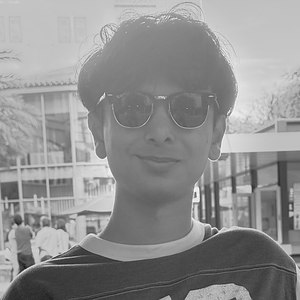
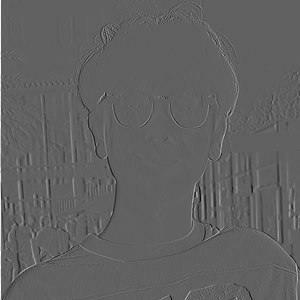
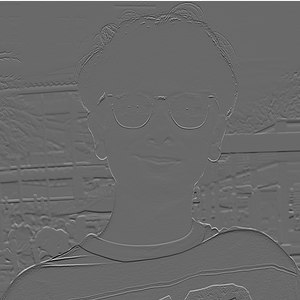
Both versions match scipy.signal.convolve2d with zero fill to within 2×10⁻¹⁵, which is just floating point rounding. On my 300×300 selfie:
| method | 9×9 box | Dx | Dy |
|---|---|---|---|
| four loops | 1.30 s | 0.05 s | 0.05 s |
| two loops | 0.15 s | 0.13 s | 0.13 s |
| scipy | 0.009 s | 0.0007 s | 0.0008 s |
On the box filter, four loops is about 9 times slower than two loops. scipy is about 17 times faster than two loops and 150 times faster than four, because its loops run in compiled code instead of Python. For the tiny 1×2 difference filters the four-loop version actually wins, because the inner loops only run twice and numpy has a fixed overhead on every slice.
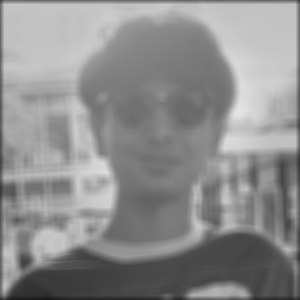
The one real difference is at the edges. Zero padding pretends everything outside the photo is black, so the box blur fades to dark around the border. You can see it in the result below. In the rest of the project I switched to scipy's boundary="symm", which mirrors the image at the edge instead.
Part 1.2
Finite difference operator
Dx = [1, −1] subtracts each pixel from its neighbor, so it lights up wherever brightness changes from left to right. Dy does the same thing vertically. The gradient magnitude combines the two with Pythagoras, √(gx² + gy²), so it shows how strong an edge is no matter which way it points.
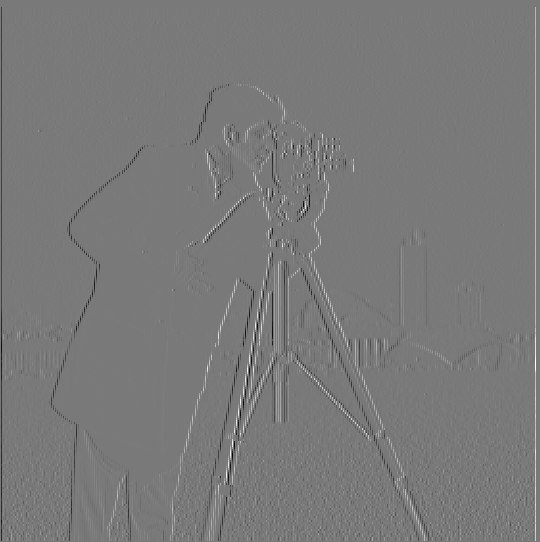
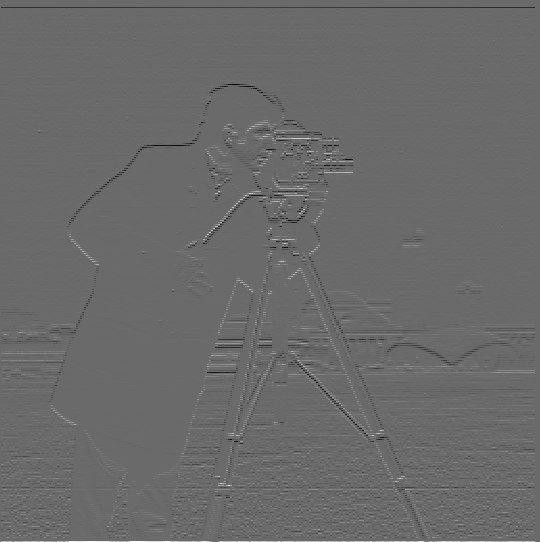
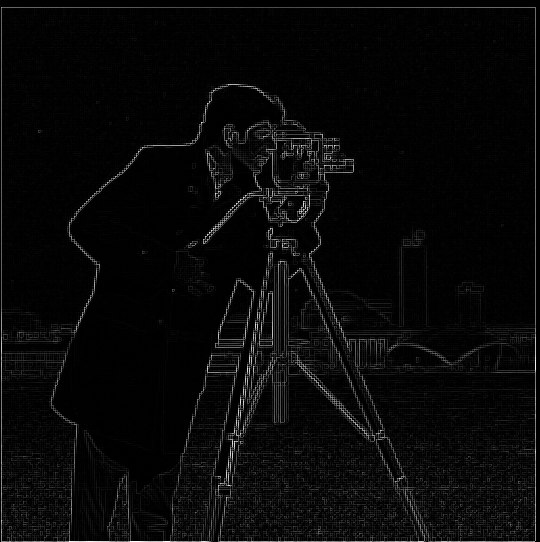
To turn the magnitude into a clean edge map I kept only pixels above a threshold, and I tried a few values:
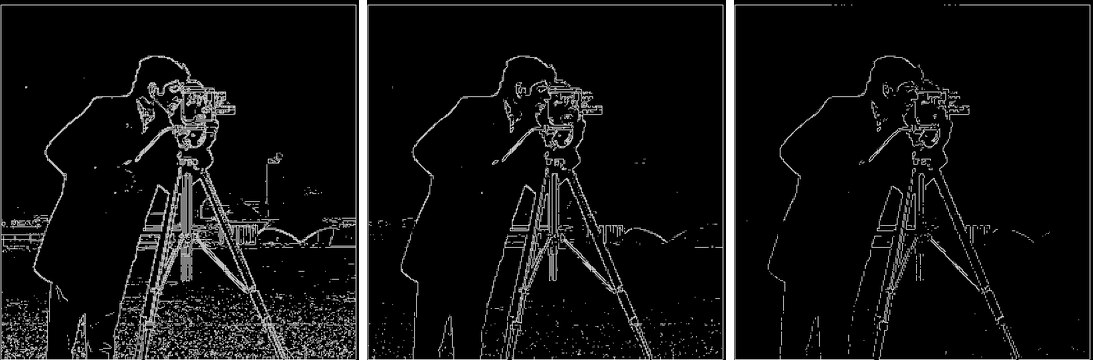
At 0.10 the grass turns into speckle. At 0.30 parts of the tripod legs and the buildings in the back start to break up. I went with 0.20. It still leaves a bit of grass noise, but it keeps the full outline of the man, the camera and all three legs, and I'd rather have a few extra dots than missing edges. The rectangle around the border is part of the cameraman file itself, which has a thin frame around it.
Part 1.3
Derivative of Gaussian
The difference filter reacts to every tiny change in brightness, and grass is full of those. So I blurred the image first with a Gaussian (σ = 1.5, built with cv2.getGaussianKernel and an outer product) and then ran the same derivatives.
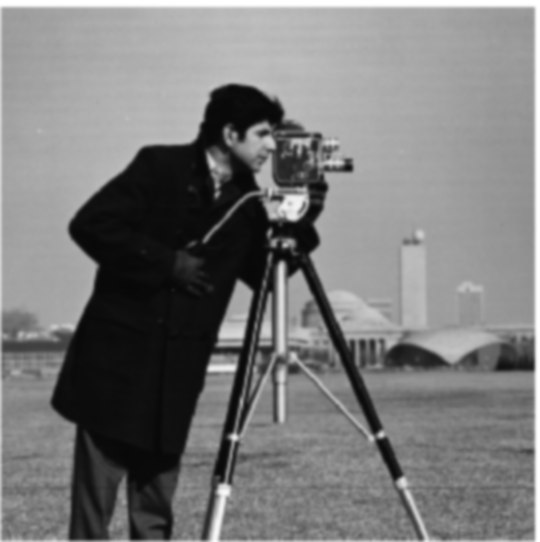
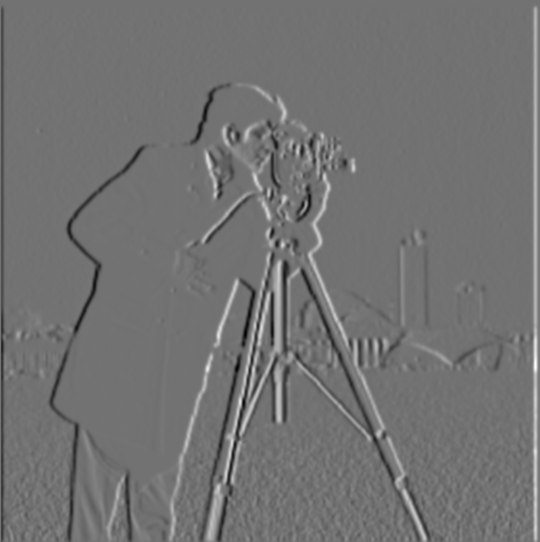
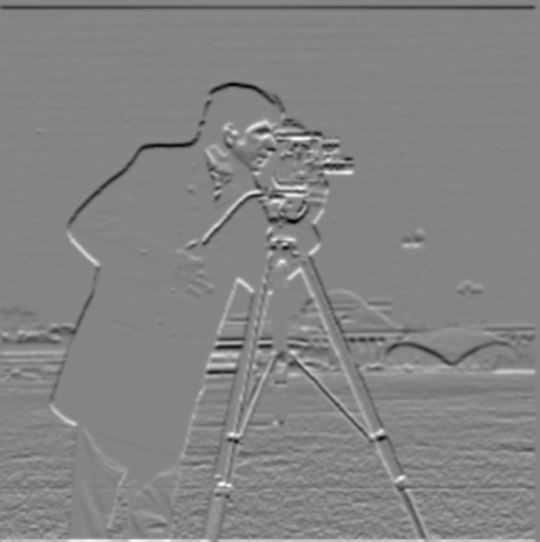
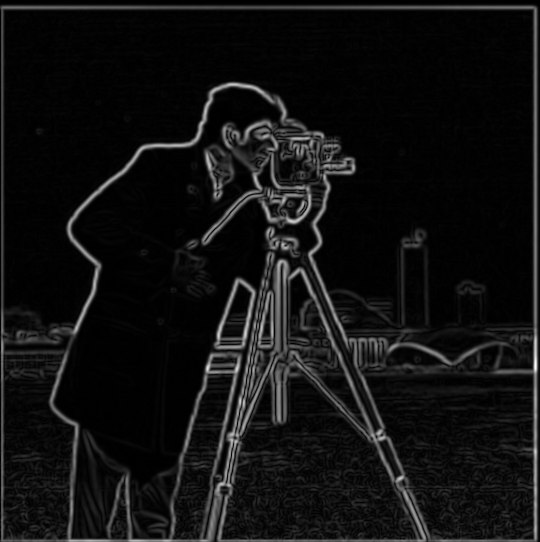
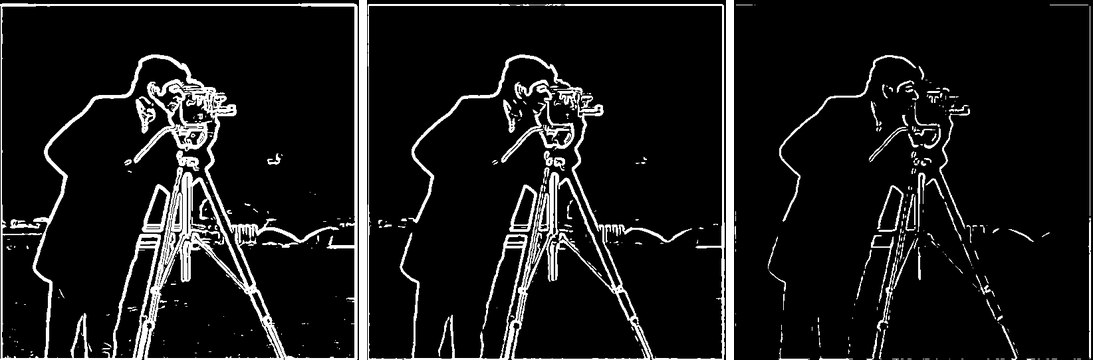
The difference is big. The grass noise is basically gone, and the edges come out thicker and smoother because the blur spreads each edge over a few pixels. The magnitudes also shrink, since blurring softens every change, so the right threshold dropped from 0.20 to about 0.06. The tradeoff is that fine detail like the thin buildings in the distance gets softer too.
Convolution can be done in any order, so blurring and then taking the derivative is the same as taking the derivative of the blur filter once and using that. Convolving the Gaussian with Dx and Dy gives the two DoG filters:
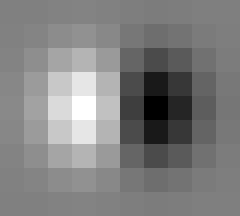
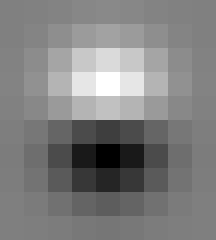
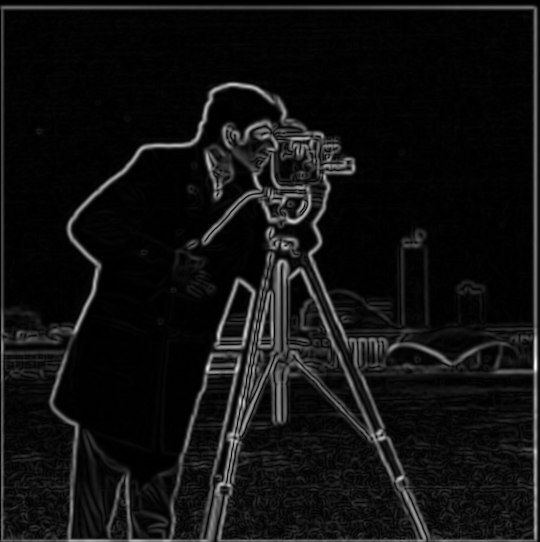
Each DoG filter is a bright blob next to a dark blob, which is a smoothed version of [1, −1]. Running the image through them once gives the same gradient magnitude as blur-then-derive. Away from the border, the biggest difference between the two is 1×10⁻¹⁵.
Part 1 · Bells & whistles
Gradient orientation
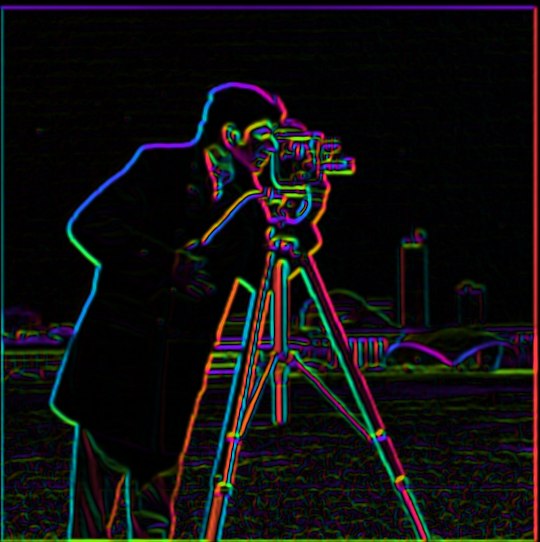
The spec said not to use built-in angle functions, so I never actually compute the angle. If an edge points at angle t, then cos t = gx/magnitude and sin t = gy/magnitude, and I already have both of those. A color wheel is just red, green and blue as three cosine waves spaced 120° apart. Using the angle subtraction rule, cos(t − 120°) = −½cos t + (√3/2) sin t, so I can build all three colors straight from cos t and sin t. It works like the HSV hue wheel, and it's cyclic too, so an edge pointing at 359° gets almost the same color as one at 1°.
Brightness comes from the gradient magnitude so flat areas stay dark. The nice check is the tripod legs: the two sides of each leg come out in opposite colors, because one side goes dark to light and the other goes light to dark.
Part 2.1
Image sharpening
A Gaussian blur keeps only the low frequencies. Subtract the blurred image from the original and what's left is the high frequencies, which is the fine detail and the edges. Adding extra high frequencies back makes the picture look sharper:
sharpened = image + α(image − blurred) = (1 + α)·image − α·blurred
Leaving an image unchanged is the same as convolving it with an impulse, a filter that's all zeros with a single 1 in the middle. So the whole thing folds into one filter, (1 + α)·impulse − α·Gaussian, and sharpening becomes a single convolution.
def unsharp_filter(sigma, alpha):
    """Build the whole sharpening step as one filter.

    sharpened = image + alpha * (image - blurred)
              = (1 + alpha) * image - alpha * blurred

    "image" is the same as convolving with an impulse (a single 1 in the middle),
    so the filter is (1 + alpha) * impulse - alpha * gaussian.
    """
    G = gaussian_2d(sigma)
    impulse = np.zeros_like(G)
    impulse[G.shape[0] // 2, G.shape[1] // 2] = 1
    return (1 + alpha) * impulse - alpha * G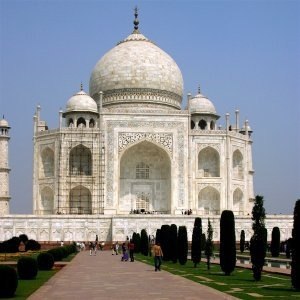
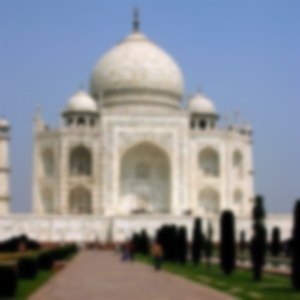
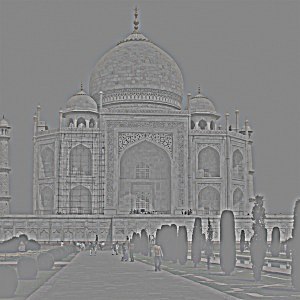
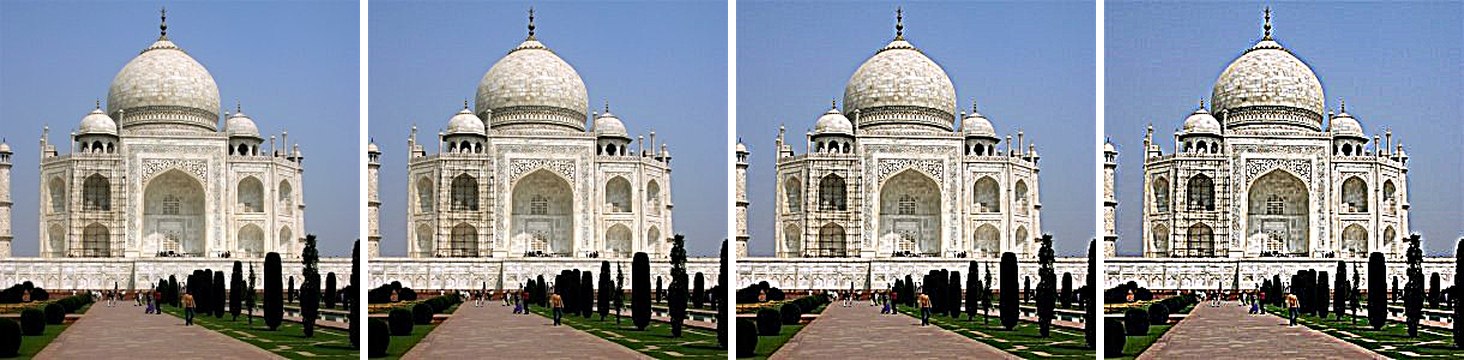
Small α makes the carvings and the trees crisper. At α = 4 it goes too far: bright halos show up along every edge, the sky next to the dome glows, and the image looks crunchy. Something around 1 to 2 looked best to me.
For my own image I used a result from Project 1. Those 1900s plates are soft, so it felt like the right thing to sharpen:
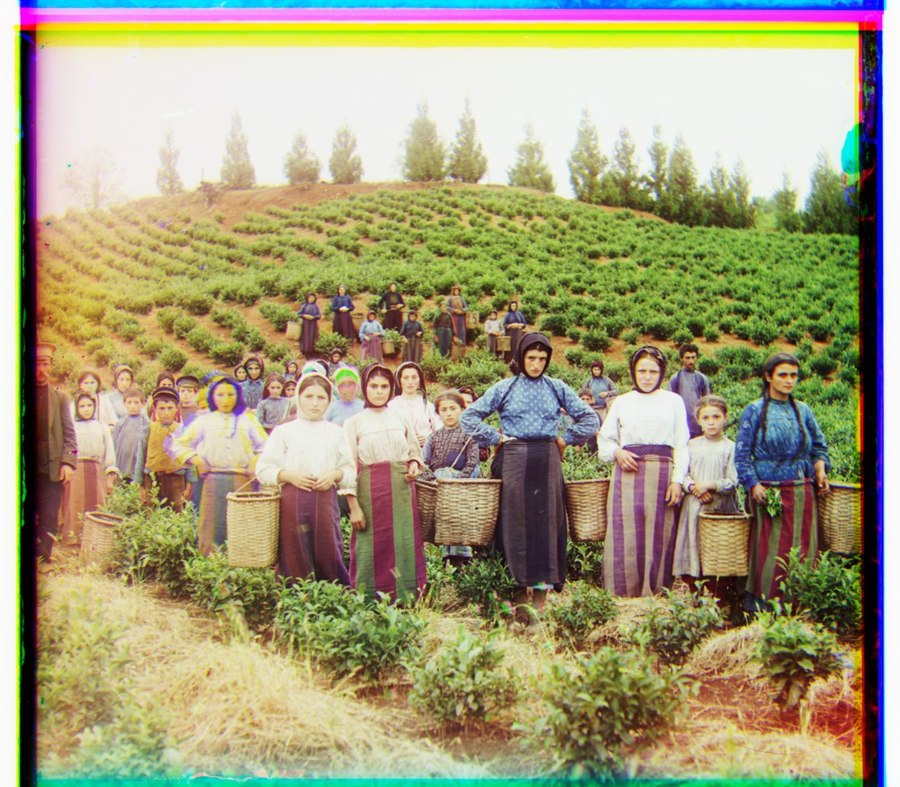
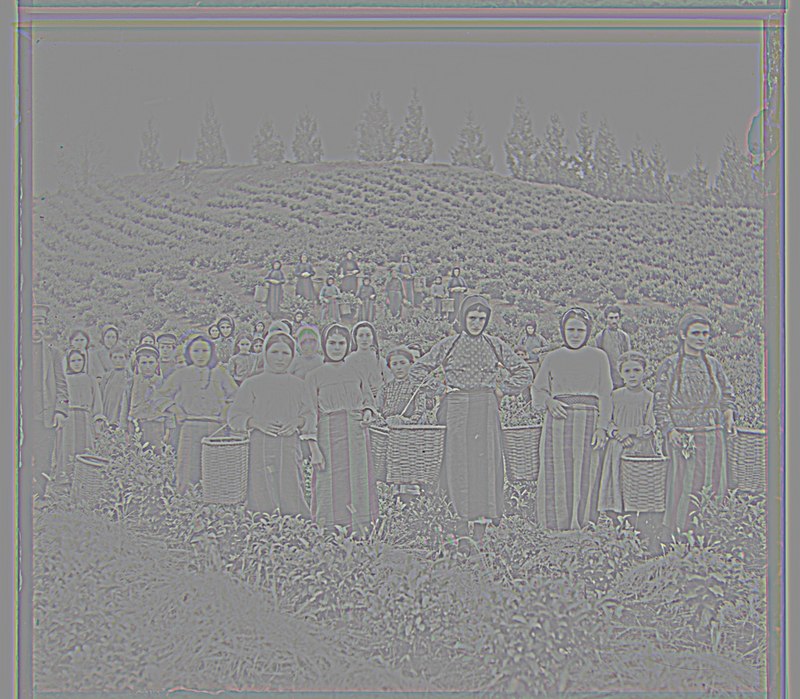
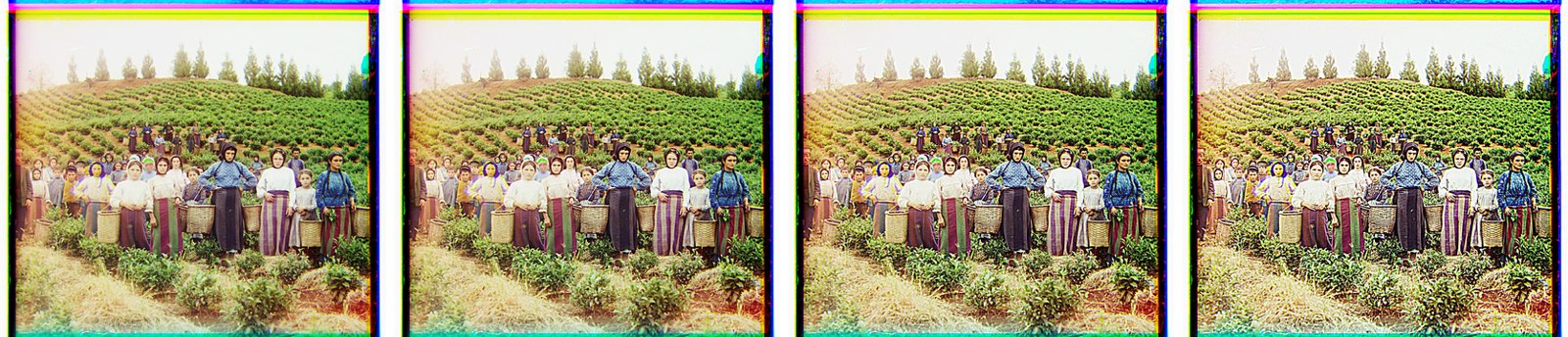
The faces and the baskets pull out nicely at α = 1 to 2. At α = 4 it also sharpens the film grain and the colored fringes around the border, which shows that sharpening can't tell detail apart from noise.
For the evaluation I took a sharp photo of a building, blurred it with σ = 2 on purpose, then sharpened it with α = 1.5:
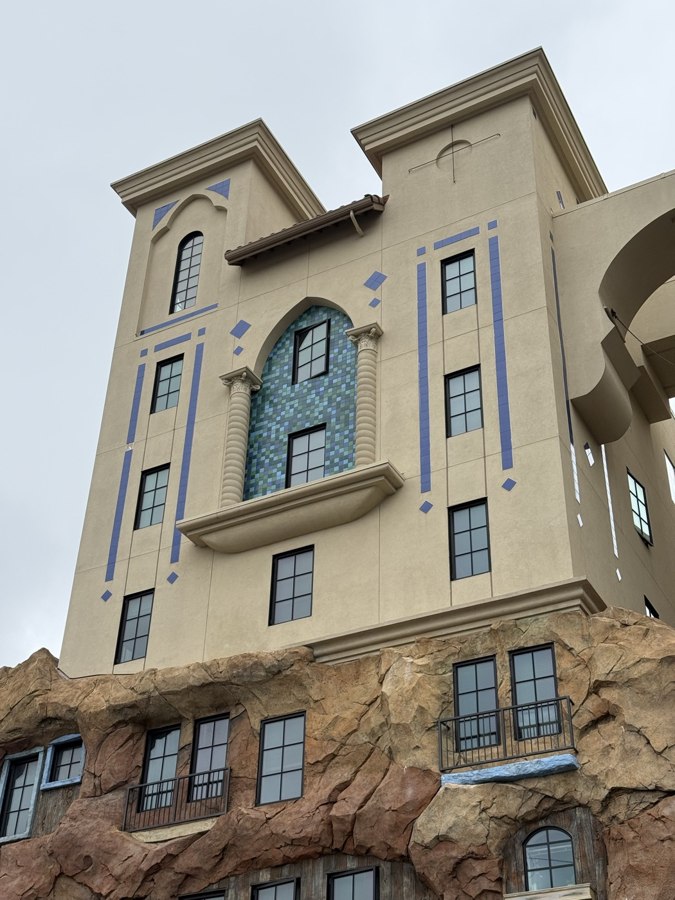
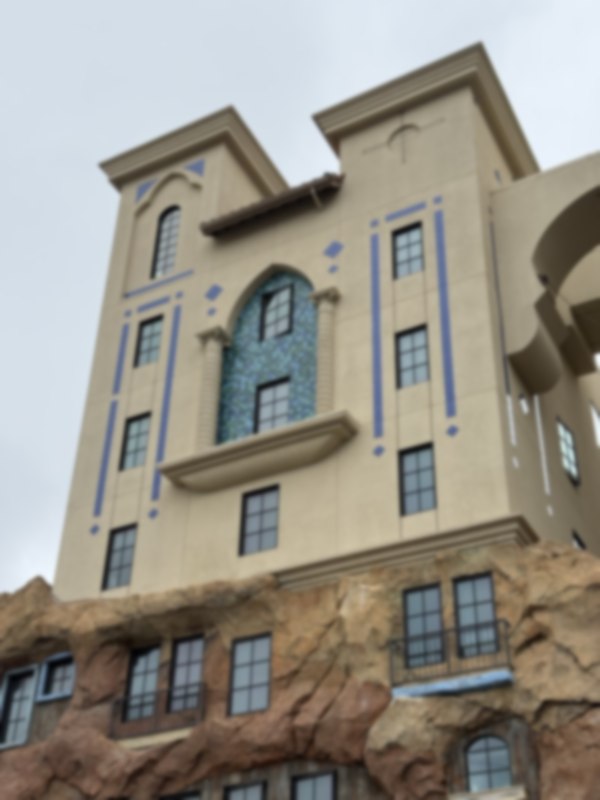
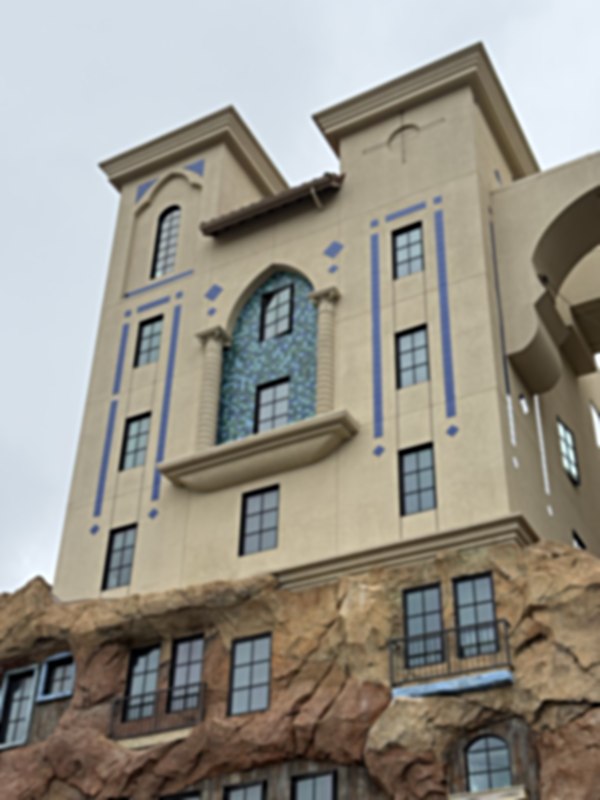
The sharpened one looks a lot better than the blurry one, and the window edges come back. But it doesn't match the original. The rock texture at the bottom and the thin lines on the wall stay soft. The average pixel error goes from 0.033 when blurred to 0.028 after sharpening, so it gets closer but never reaches zero. That makes sense. The blur threw some high frequencies away completely, and sharpening can only boost what's still there. It can't bring back detail that's gone.
Part 2.2
Hybrid images
Up close your eyes pick up fine detail, but from far away only the broad shapes come through. A hybrid image uses that. It takes the low frequencies of one image and the high frequencies of another and adds them together. Up close you see the sharp image, and from across the room the blurry one takes over.
The first step is lining the two images up. I click the same two points on both (the eyes, for faces). The line between the two points gives the scale from its length, the rotation from its direction, and the shift from where the first point lands. Then I crop both images to the area where the warped one actually has pixels, so there's no empty or mirrored border. After that, low pass = blur with σlow, high pass = image minus blur with σhigh, and the hybrid is the sum.
My favorite: the Emir of Bukhara and me
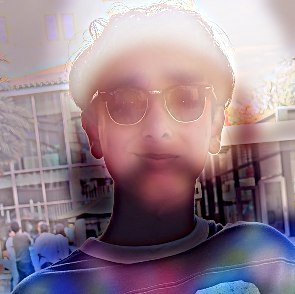
Change over time. The Emir from my Project 1 plate, photographed in 1911, is the far image, and a 2026 selfie of me is the near one.
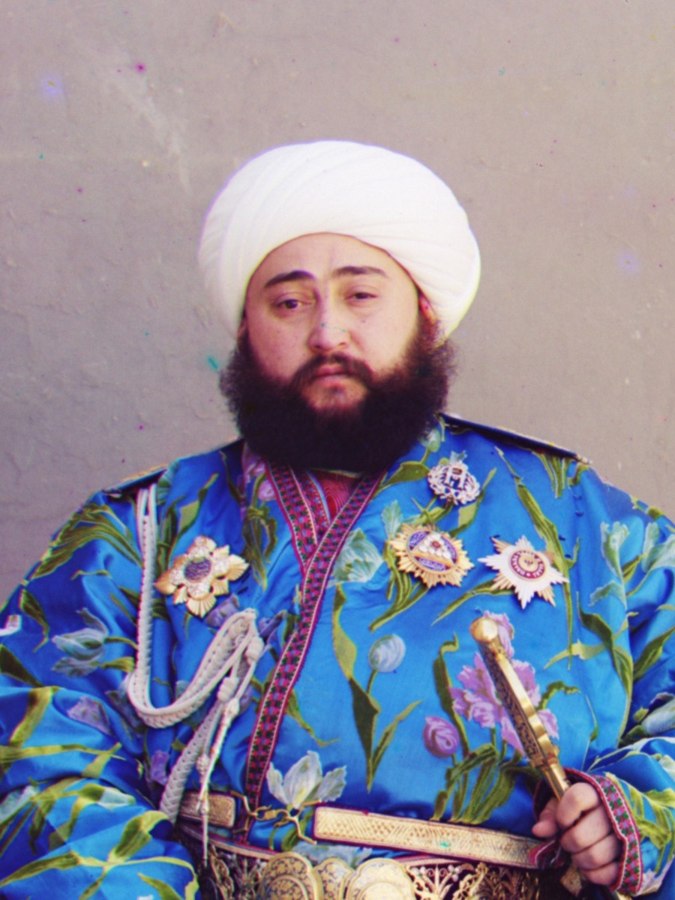
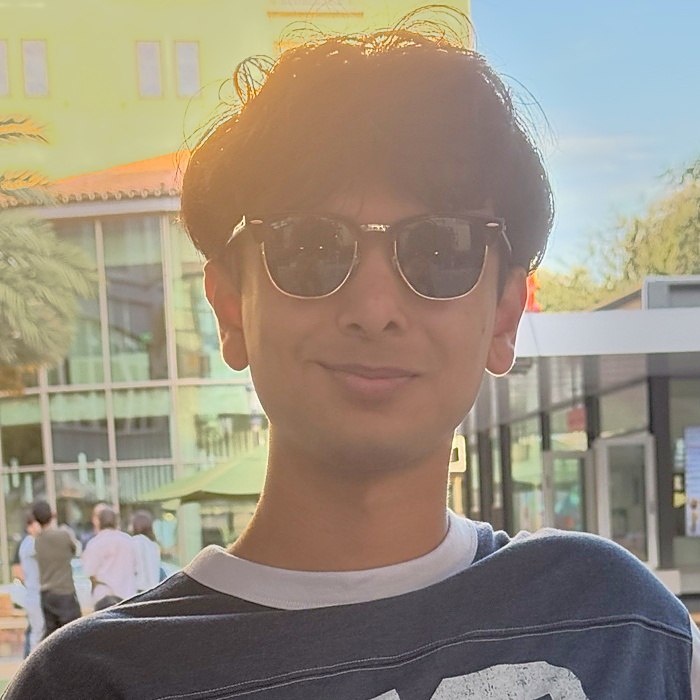
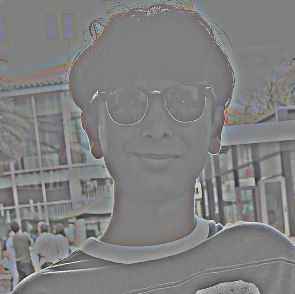
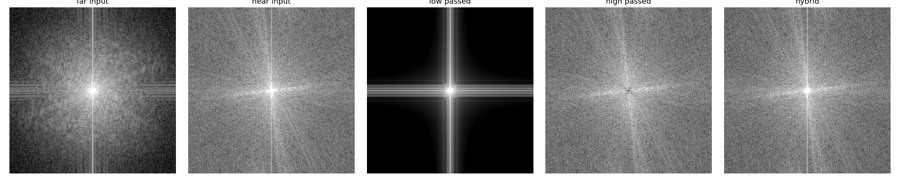
The frequency plots show exactly what each filter does. The center of each plot is the low frequencies and the outside is the high ones. The low pass wipes out everything except a bright spot in the middle. The high pass does the opposite and leaves a dark hole in the center. The hybrid has both: the Emir's bright center and my spread-out high frequencies around it.
For the cutoffs I tried a few and judged them by eye. I ended up with σlow = 7 and σhigh = 5. A Gaussian with blur size σ in pixels lets through frequencies up to about 1/(2πσ) cycles per pixel, so that puts the Emir's cutoff around 0.023 cycles per pixel and mine around 0.032. The two cutoffs sit close together but don't overlap much, so neither face takes over the middle frequencies. If σlow is too small, the Emir's beard and turban are still sharp up close and fight with my face. If σhigh is too big, too much of my face gets through and the Emir never shows up, even from far away.
Derek and Nutmeg
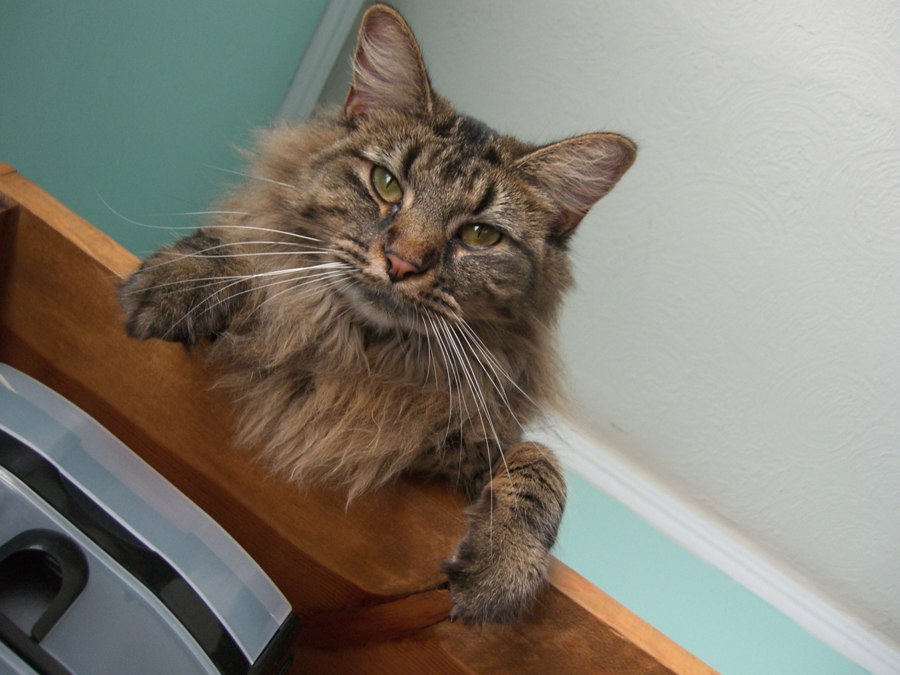
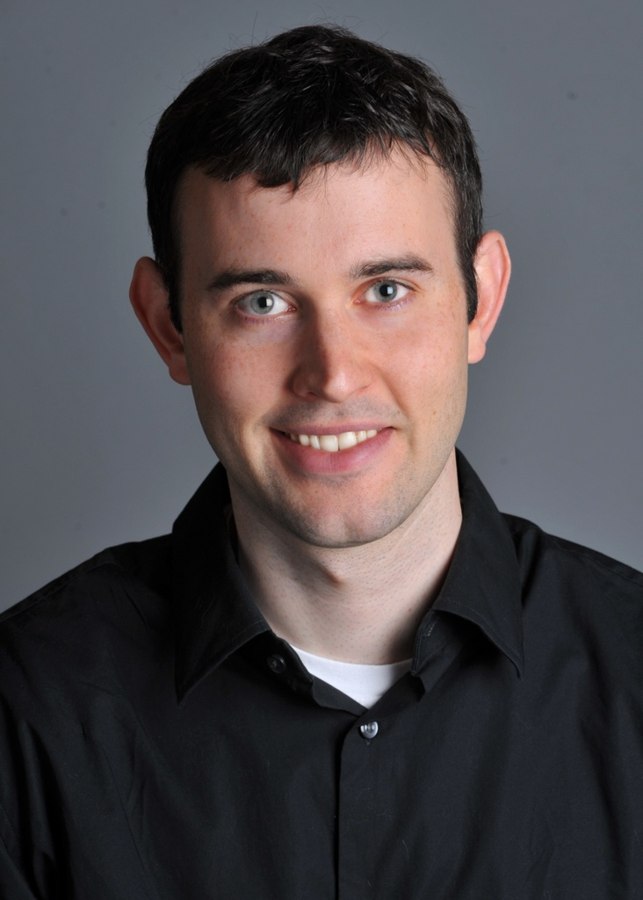
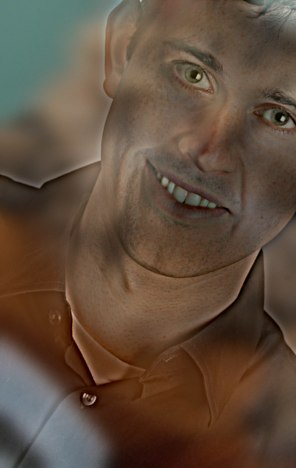
σlow = 8, σhigh = 4. Derek's head is tilted a lot less than the cat's, so his photo gets turned about 30° to line the eyes up.
Me and Nutmeg
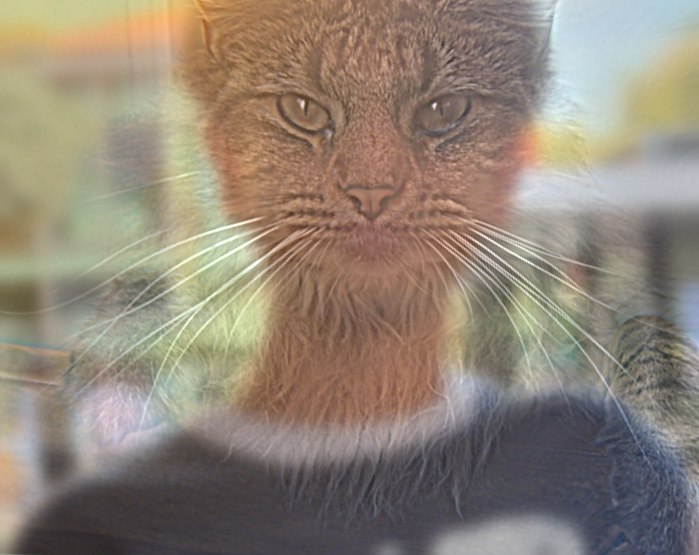
A morph between two things. Up close it's the cat's fur and whiskers, and from far away it turns back into me. This one works well because Nutmeg's fur is almost all high frequency, so it survives the high pass really well.
Part 2.2 · Bells & whistles
Does color help a hybrid?
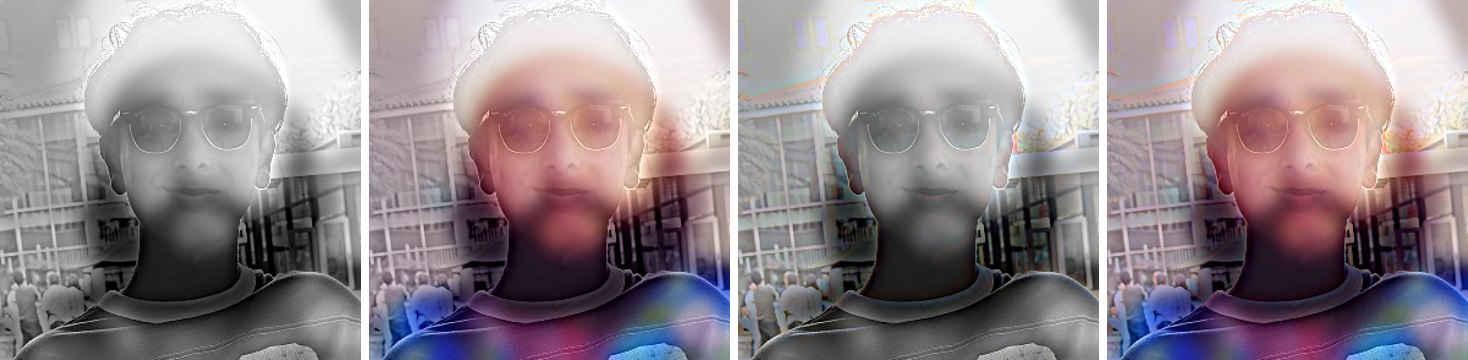
I made the Emir hybrid four ways. Color in the far image works best. The low frequencies are where color actually lives: skin tone, the blue robe, the white turban. They're big smooth patches, so they carry color easily, and they help the Emir take over from far away.
Color in the near image barely does anything. The high pass throws away the smooth parts of the image, so what's left is thin edges, and an edge is too thin for its color to register. The version with both is about the same as far-only. So I'd put color on the low frequencies and keep the high frequencies gray.
Part 2.3
Gaussian and Laplacian stacks
A Gaussian stack is the same image blurred more and more. A pyramid shrinks the image by half at every level, which doubles how blurry it looks. A stack never shrinks, so instead I double the blur at each level: σ = 2, 4, 8, 16 and 32. Every level stays full size.
Each Laplacian level is the difference between two neighboring Gaussian levels, which is the band of detail that disappears in that step of blurring. The last level is the blurriest Gaussian itself. That way adding every Laplacian level back up gives the original image exactly (max error 1×10⁻¹⁶).
def gaussian_stack(im, levels, sigma=2):
    """Level 0 is the image. Each level after that is blurred more.

    A pyramid halves the image at every level, which doubles how blurry it
    looks. A stack keeps the full size, so to get the same effect the blur
    doubles at every level instead.
    """
    stack = [im]
    for i in range(1, levels):
        stack.append(blur(im, sigma * 2 ** (i - 1)))
    return stack

def laplacian_stack(im, levels, sigma=2):
    """Each level is the detail that disappears between two Gaussian levels.

    The last level is the blurriest Gaussian level itself, so that adding
    every level back together gives exactly the original image.
    """
    g = gaussian_stack(im, levels, sigma)
    lap = [g[i] - g[i + 1] for i in range(levels - 1)]
    lap.append(g[-1])
    return lap



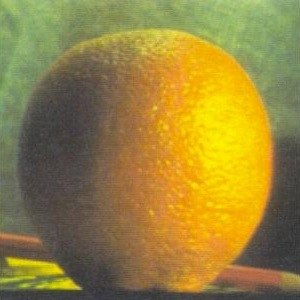
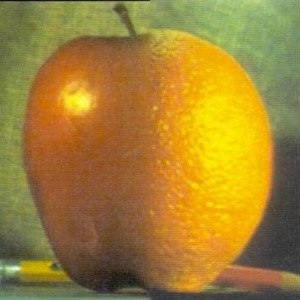
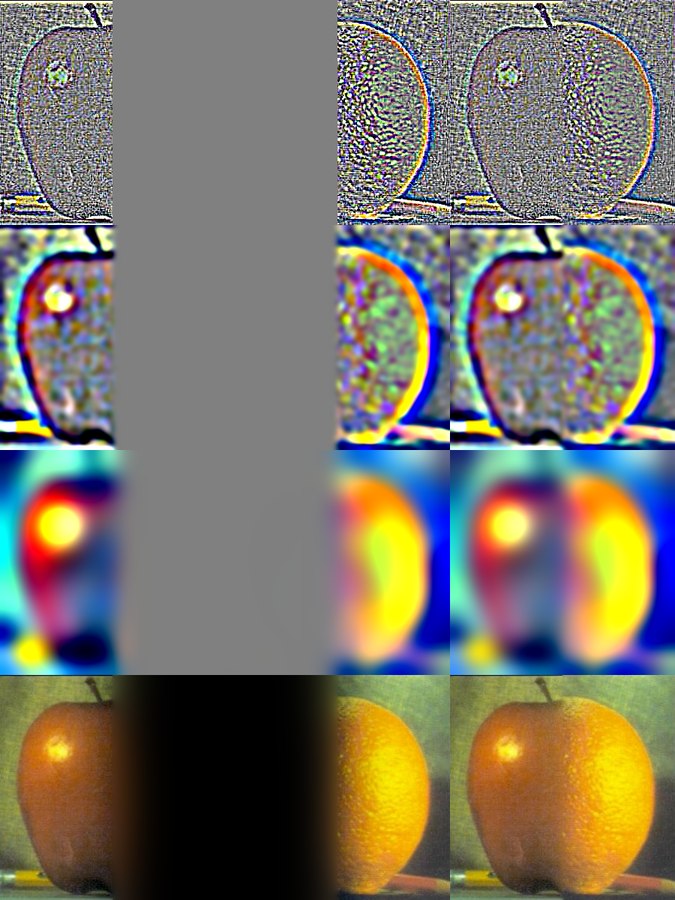
The first Laplacian levels are just texture, like the orange's dimpled peel and the apple's speckles. The middle levels are the outline of the fruit, and the last ones are big blobs of color and light.
Part 2.4
Multiresolution blending
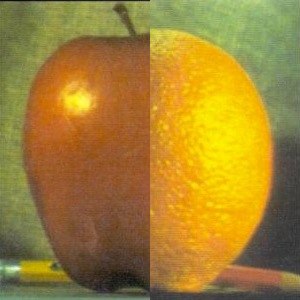
If you just paste half of one image next to half of the other, you get a hard line. Blurring the mask helps, but one blur width can't be right for everything. A narrow blend leaves a visible seam in the smooth colors, and a wide blend makes fine texture from both images overlap and look ghosty.
The fix is to blend each frequency band separately. I build Laplacian stacks for both images and a Gaussian stack for the mask. Each band gets mixed using the mask blurred to match it. Fine texture gets a sharp transition and broad color gets a wide, soft one, and adding the bands back up gives an image with no visible seam.
def blend(a, b, mask, levels=6, sigma=2):
    """Blend each frequency band separately, then add the bands back up.

    Fine detail gets a sharp seam (from the lightly blurred mask) and broad
    colour gets a wide, gentle seam (from the heavily blurred mask). That is
    why the result has no visible join.
    """
    la = laplacian_stack(a, levels, sigma)
    lb = laplacian_stack(b, levels, sigma)
    gm = gaussian_stack(mask, levels, sigma)
    bands = [gm[i] * la[i] + (1 - gm[i]) * lb[i] for i in range(levels)]
    return np.clip(sum(bands), 0, 1), la, lb, gm, bands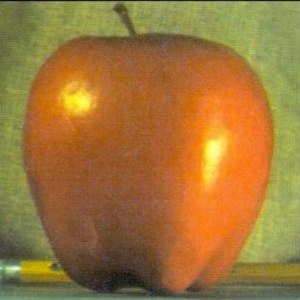
Straight seam: half me, half Derek
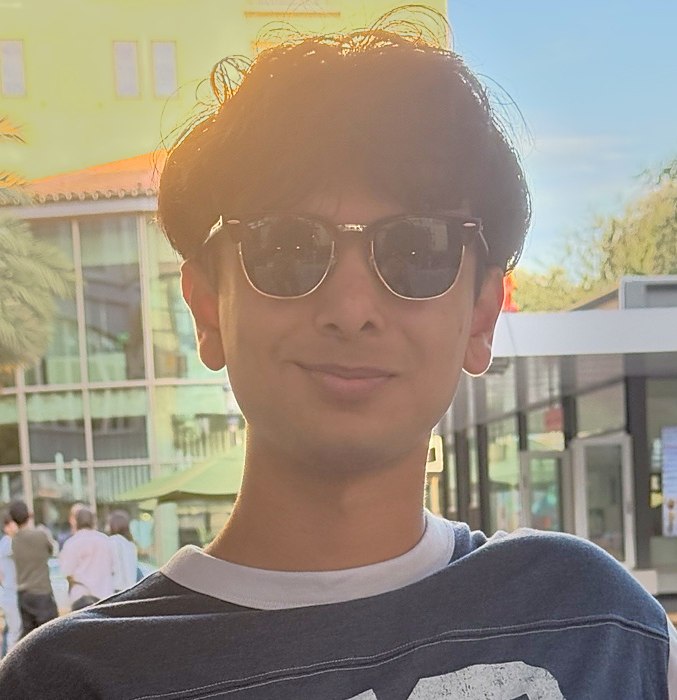
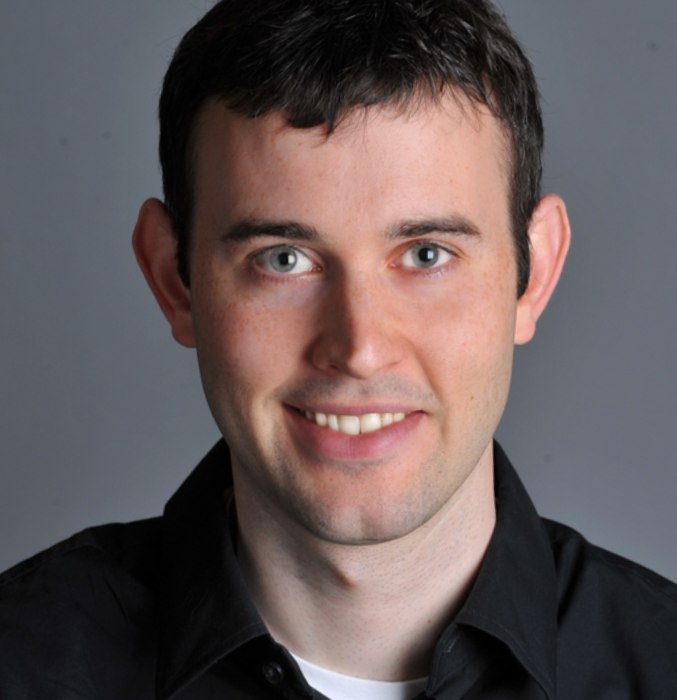
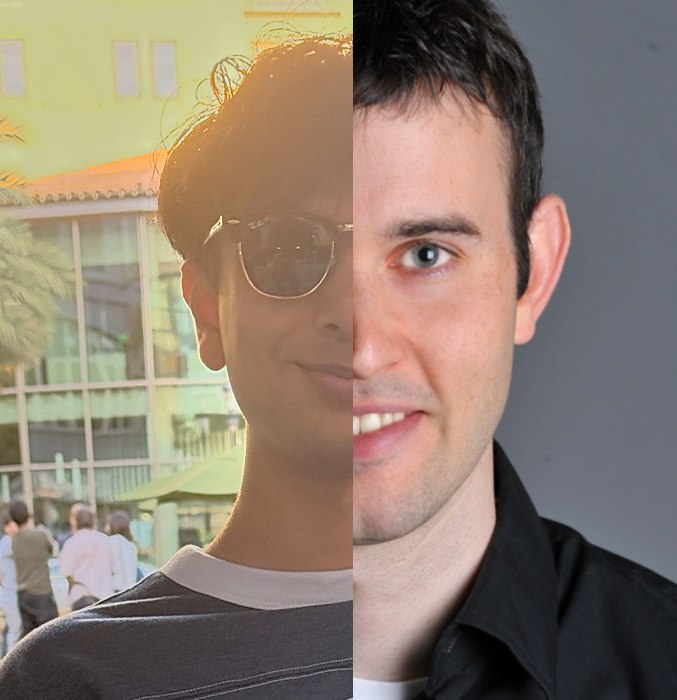
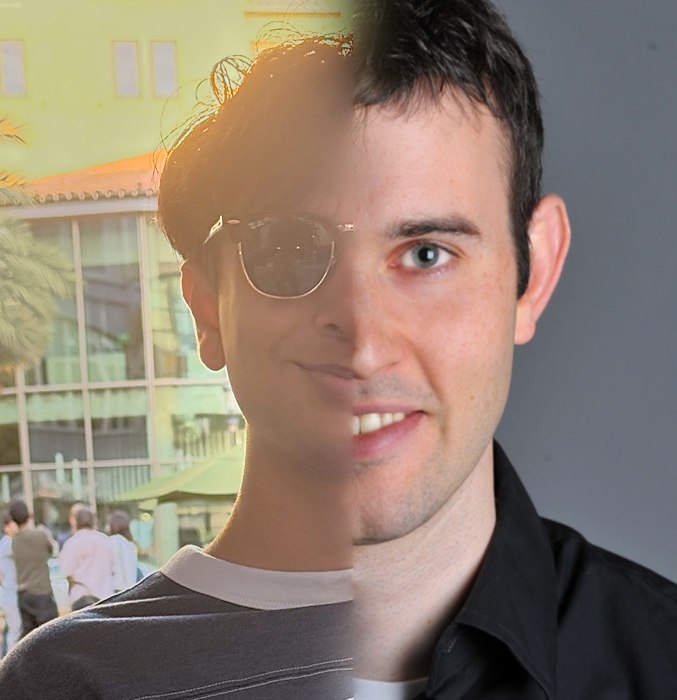
I lined the faces up by the eyes and cut straight down the nose. The pasted version has a hard edge down the middle of the face. The blend smooths out the skin and hair where they meet. It still can't hide that the backgrounds and shirts are completely different, but the face itself reads as one face.
Irregular mask: my face on Derek
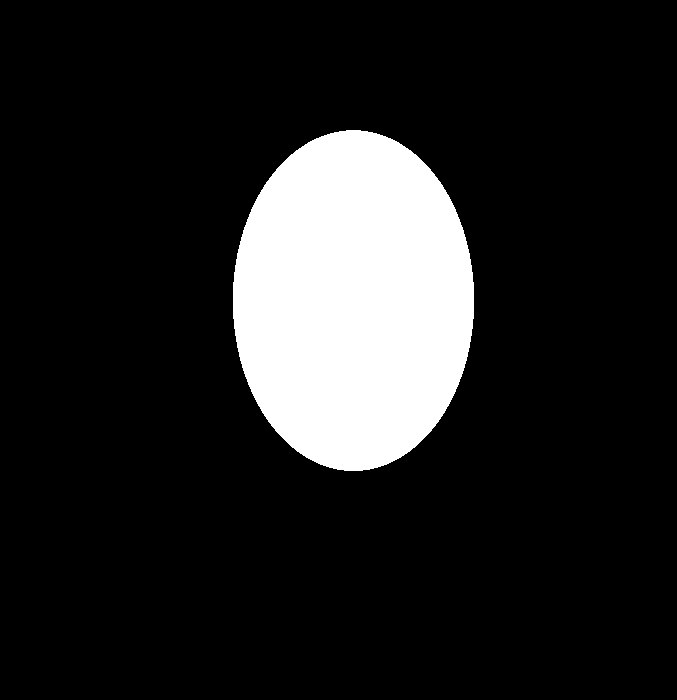
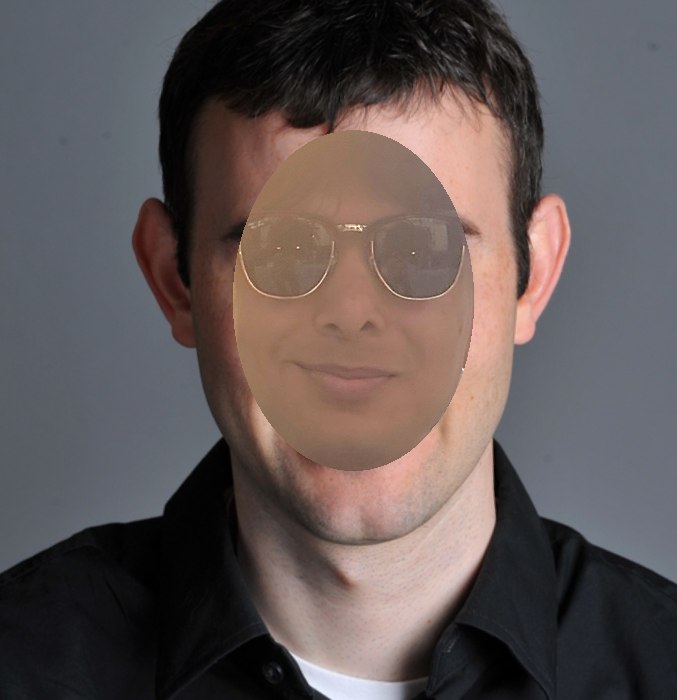
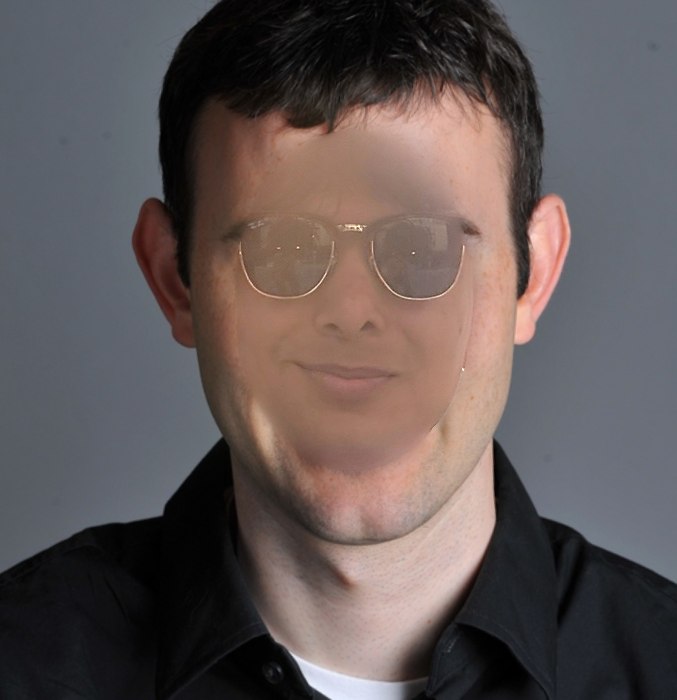
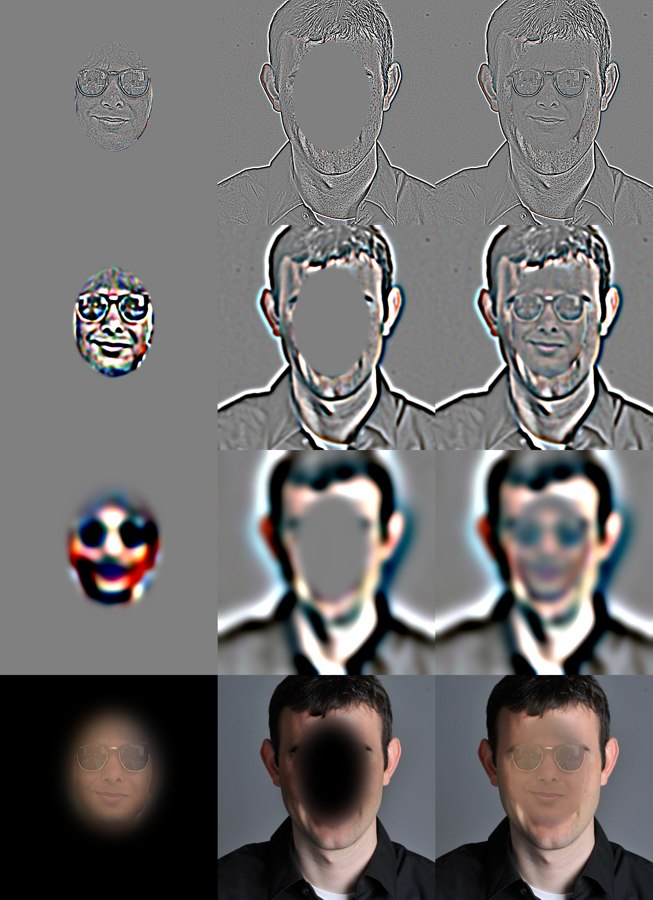
The mask is an oval placed and sized from where the eyes are. Pasted in, you can see the outline of the oval and the change in skin tone. With the multiresolution blend, the edge of the oval mostly disappears into his forehead and cheeks. My first oval was too wide for my face and let the street behind me leak in at the chin, so I shrank it to fit. It still isn't perfect. My photo was taken against the sun, so one side of my face is in shadow, and that shows up as a darker patch near his temple. Below is the same breakdown as the oraple, the Laplacian stack of the blend like Figure 10 in the paper:
Part 2.4 · Bells & whistles
Using color in the blend
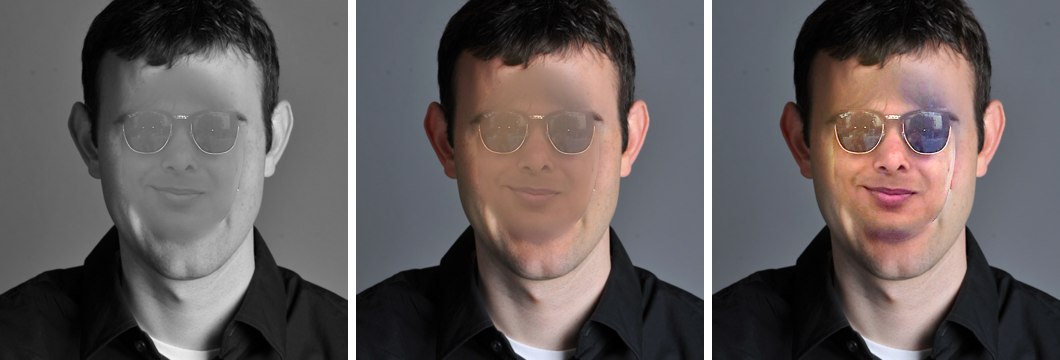
Everything above is already blended in color, since I just run the same blend on each channel. But in the face swap, the biggest giveaway is color and lighting. My photo was taken outside against the sun, so my face is hazy, warm and low contrast, while Derek's is a crisp studio shot. Even with a perfect blend, my face looks like a faded sticker on his head. In grayscale the haze is still there but the warm tint is gone, so it stands out a little less.
So before blending I matched the colors. Inside the oval, I shifted each channel of my face so its average and spread match Derek's face in the same spot. Matching the spread is what fixes the haze. It stretches my low-contrast face out to Derek's contrast, so my features come back and the face sits in his lighting much better. The downside is that it also stretches the shadow on one side of my face, so that patch gets darker, and it pushes the right lens of my sunglasses toward blue. I still think it's the most useful color trick here, because for faces matching the tone and lighting matters more than how smooth the seam is.
def match_colors(src, ref, mask):
    """Shift each colour channel of src so that, inside the mask, its average and
    spread match ref. This evens out skin tone and lighting before blending, so
    the seam has less colour difference to hide."""
    inside = mask[:, :, 0] > 0.5
    out = src.copy()
    for c in range(3):
        s, r = src[:, :, c][inside], ref[:, :, c][inside]
        out[:, :, c] = (src[:, :, c] - s.mean()) / (s.std() + 1e-8) * r.std() + r.mean()
    return np.clip(out, 0, 1)
Takeaway
What I learned
The most important thing I learned is that a lot of image processing is just splitting a picture into frequencies and treating each band differently. Sharpening boosts the high band. A hybrid takes the low band from one image and the high band from another. Blending mixes each band with its own mask. Once I understood the Gaussian as the low pass and "image minus Gaussian" as the high pass, every part of this project was the same idea used in a different way.